Interface & Session Management
This chapter covers VelaTerm's organizational model: the three-pane layout, managing the tree, how tabs and split panes behave, status dots and filtering, archiving, and global search. Everything else builds on these.
1. The layout
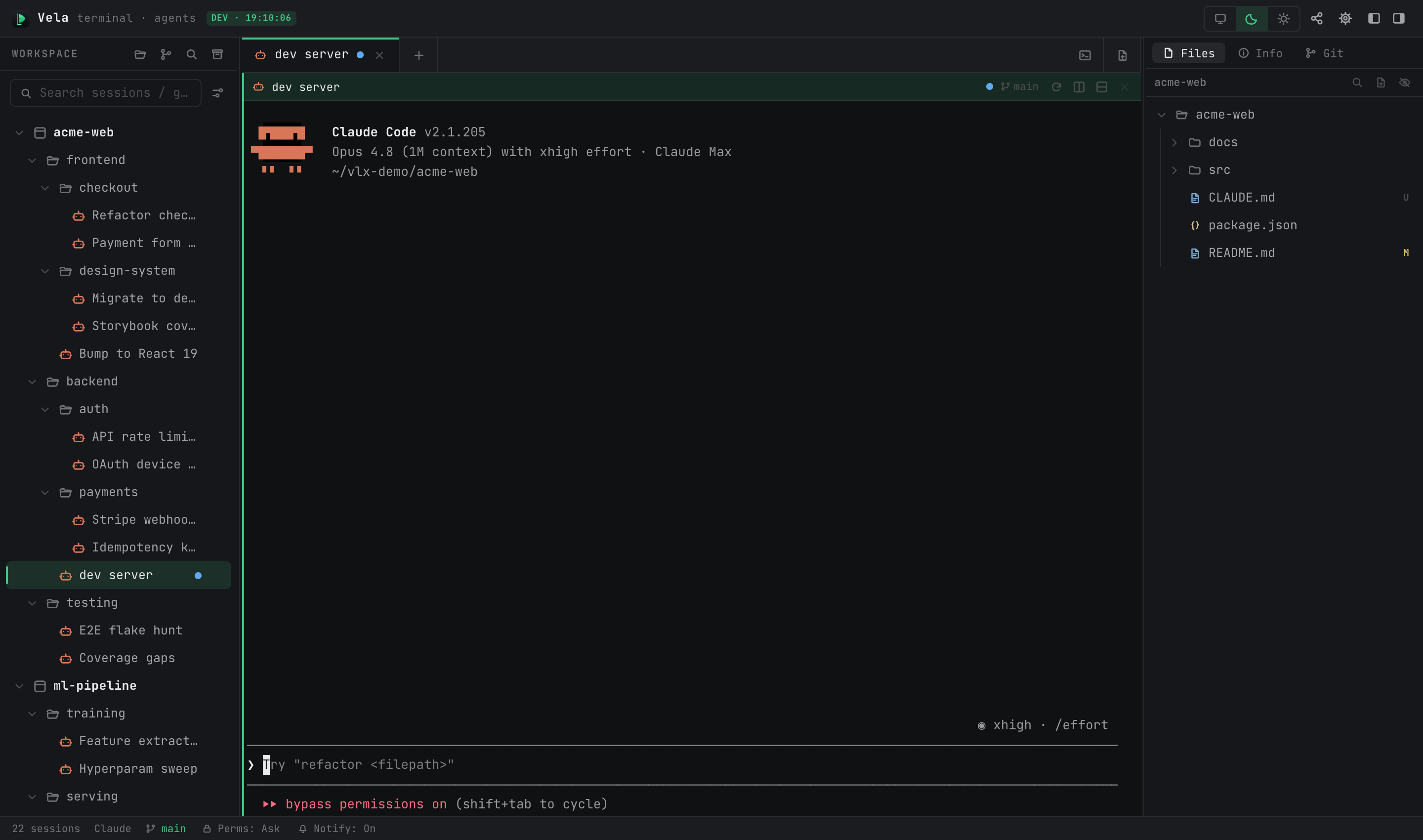
| Area | Contents |
|---|---|
| Left sidebar | Project tree (project → group → session), name search box, status filter; header buttons: Import Project / Clone from Git / Global Search / Archived Sessions |
| Center pane | Tab bar + terminals (or document / browser tabs); each tab can be split into panes |
| Right panel | Follows the current session: Files tree / Info / Git branch & changes |
| Status bar | Session count, current session state, Git branch, notification toggle, global three-state counters |
Both side panels can be collapsed (the two rightmost title-bar buttons) and resized by dragging.
2. The tree: projects, groups, sessions
A project maps to a directory on disk and is the root of a subtree. A group is a purely organizational node and can nest arbitrarily. A session is the working unit — a terminal or an agent process. Its working directory defaults to the project root and can be overridden in the session's edit form.
Most operations live in the context menus:
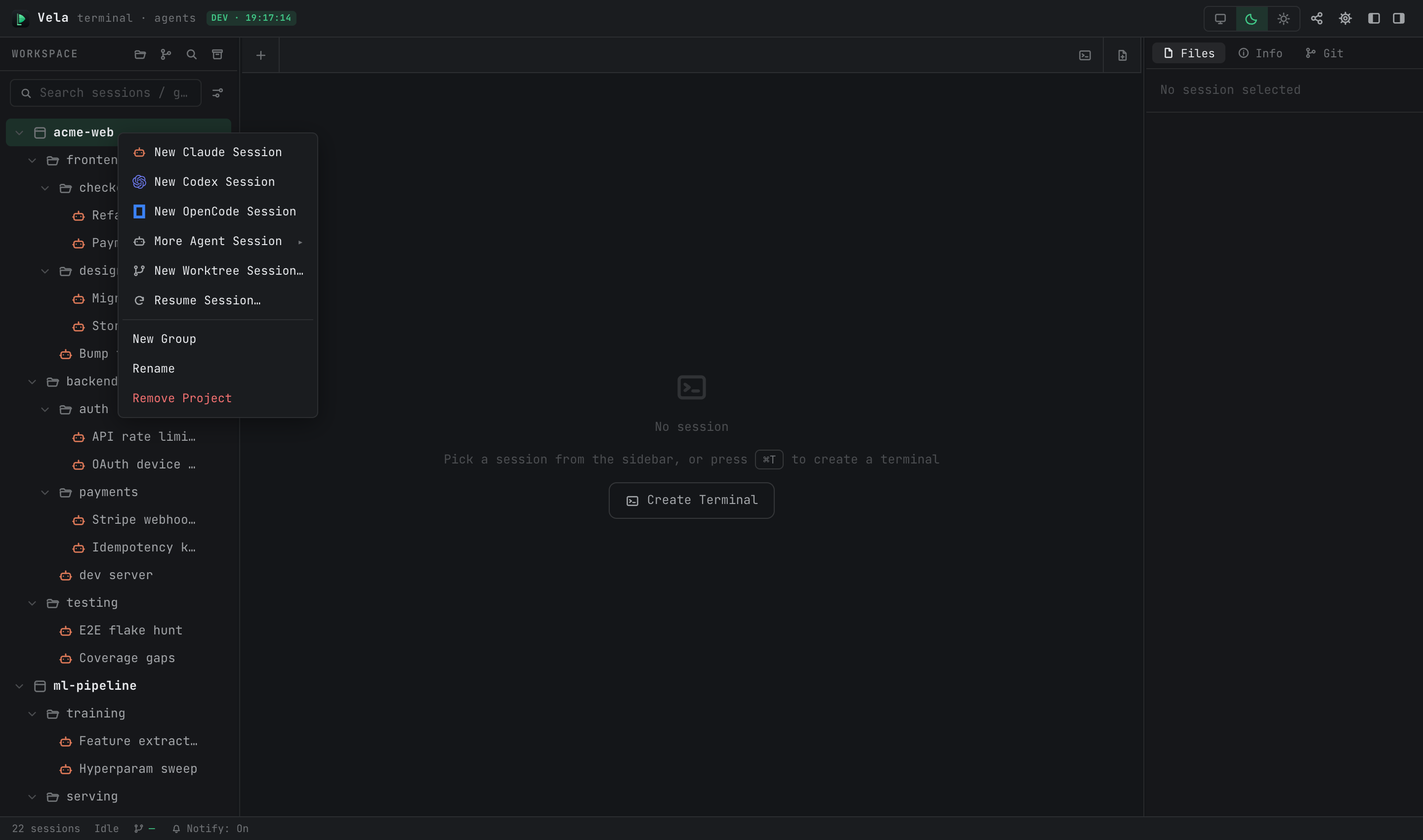
- Create: project / group menus offer New Claude Session, more agent types under More Agent Session, New Browser Page (desktop), and New Group. Group menus also carry New Terminal Session, and so does the + button that appears when you hover any project / group / session row — both create a center-pane draft terminal rather than a tree node. At the bottom you'll also find "New with launch args…" (create with custom launch arguments) and "Resume Session…" (attach a known agent session id as a new node — see the agents manual).
- Move: drag nodes directly, or right-click → "Move to…". A session can also be moved under another session to become its child.
- Rename / Edit: Rename changes the name; Edit opens the full form (name, working directory, startup command, launch args, permission toggle, and so on). If you don't name a claude session, it names itself after your first message.
- Multi-select: ⌘/Ctrl-click several sessions, then right-click for batch open, batch archive, batch move, or batch delete.
- Collapse state is persisted across restarts.
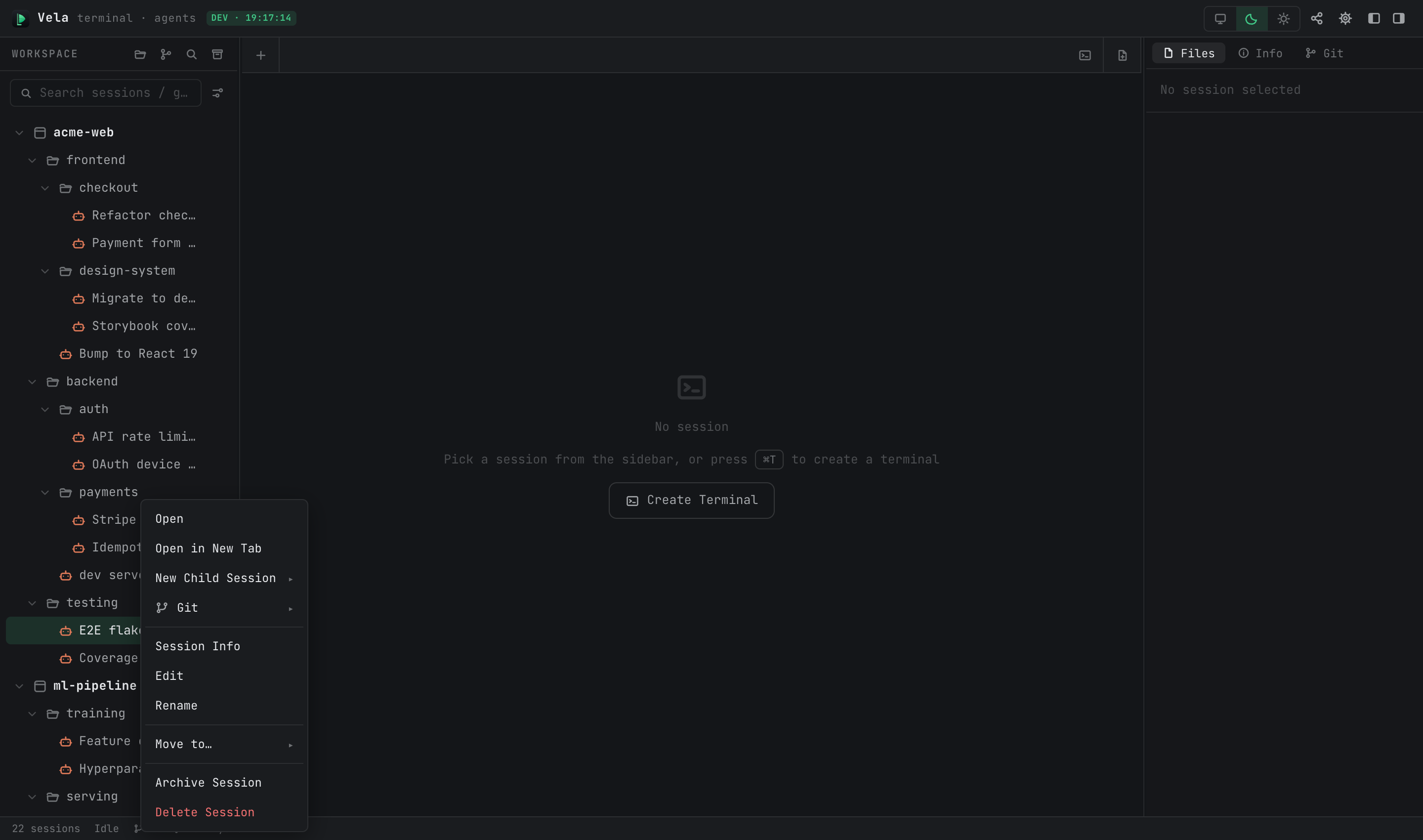
Session context menus are richer (entries appear based on session type and state):
3. Tabs: deliberately browser-like
Three rules explain everything tabs do:
- Clicking a session in the tree reuses the current tab by default; use right-click → "Open in New Tab" to open more.
- Switching away is not closing: the displaced tab moves to background keep-alive — its processes keep running and output keeps flowing; switch back any time. Background tabs have a cap (default 32, adjustable via "Background limit" in Settings); past the cap, the oldest inactive one is ended automatically, and if all are active you'll be asked.
- Closing a tab (⌘W or ×) actually ends the process. For agent sessions that's not scary: the conversation is remembered, and reopening the node resumes it.
⌘1–9 switches between tabs. The + area at the right end of the tab bar creates scratch terminals, new documents, and browser tabs.
4. Split panes
Within one tab you can split the terminal: ⌘D splits right, ⌘⇧D splits down (pane headers have split buttons too), and the dividers are draggable. A new pane inherits the current pane's working directory:
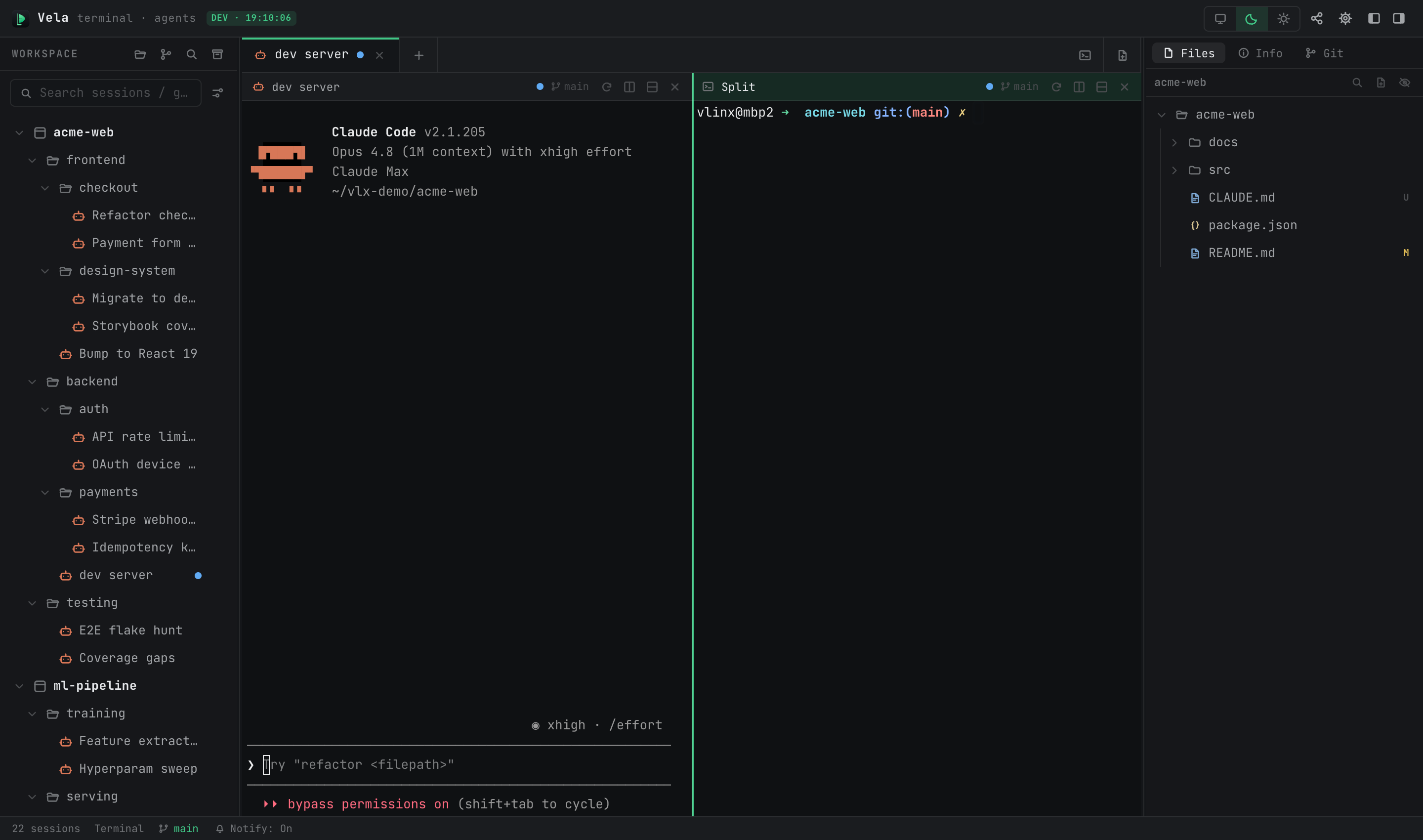
Keep-alive operates on the whole tab — switch away and back, and the entire split layout is preserved. ⌘W closes the current pane; closing the last pane closes the tab.
5. Scratch sessions (drafts)
The terminal you get with ⌘T is a draft: it exists only as a center-pane tab, never touches the tree or the database, and is discarded on close (the tab carries a scratch badge). Use it for quick command checks or a throwaway ssh — your tree stays clean. Terminals only exist in this form: no menu action converts a draft into a tree node, so treat every terminal as disposable and keep long-lived work in agent sessions. The draft's context menu is correspondingly short — Open, Open in New Tab, Rename, Session Info, Close Scratch.
6. Status dots and filtering
The dot next to each agent session shows its live state:
| Color | Meaning |
|---|---|
| Green | Working |
| Yellow | Needs you — asking a question / awaiting permission, or has an unread notification |
| Magenta | Replied, and you've already seen it |
The status bar shows global counters for the three states (Working / Pending / Viewed); click one and the sidebar shows only sessions in that state — with a dozen agents in flight, this is how you find "who's waiting on me" at a glance. The sidebar search box filters tree nodes by name.
7. Archiving: put away, don't delete
Finished work doesn't need deleting. Right-click a session → "Archive Session" to soft-hide it — the whole subtree (children included) leaves the tree and its processes end, but all data is kept. The archive button in the sidebar header opens the Archived Sessions panel:
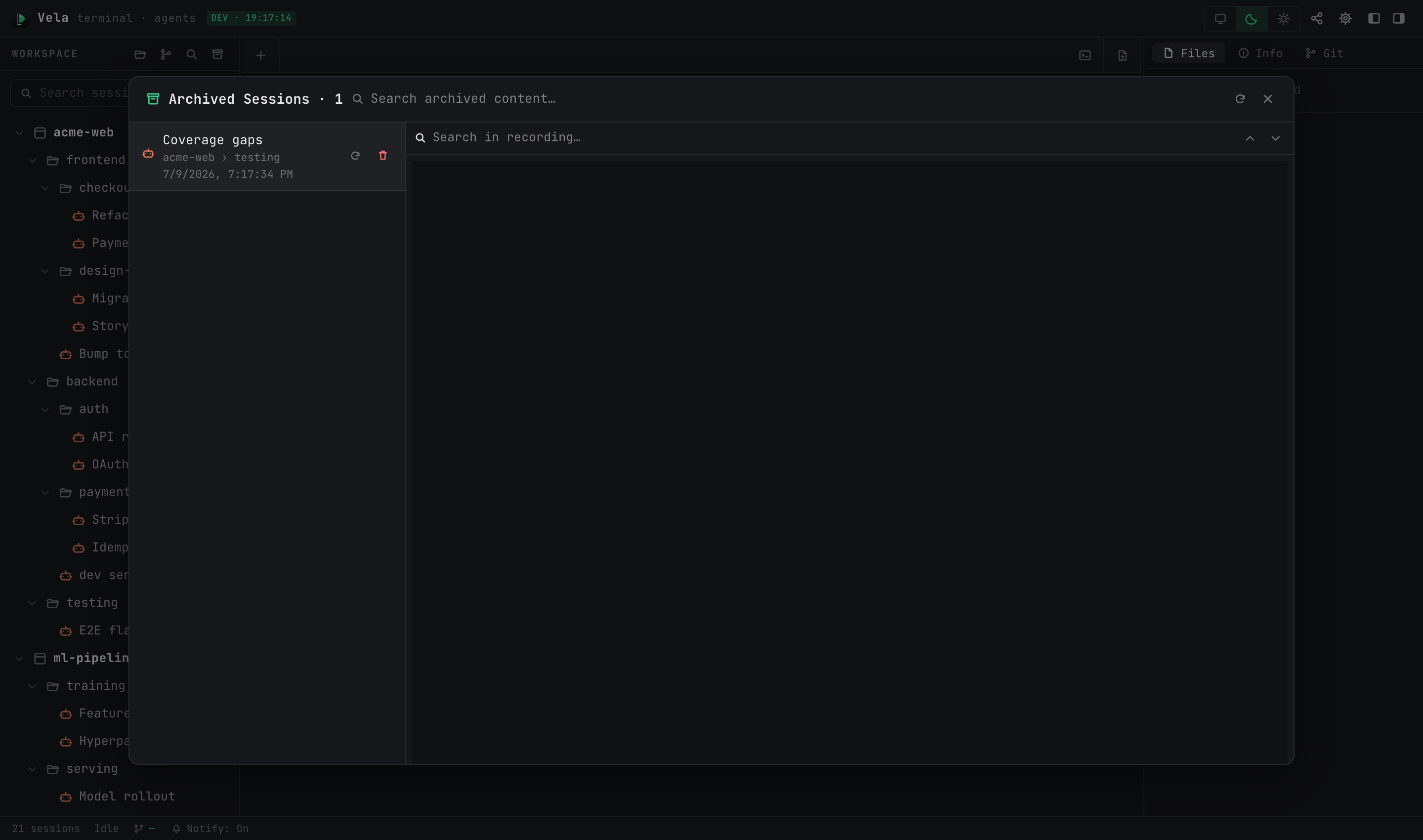
- Each archived session's content is viewable: agent sessions show a parsed transcript (user/assistant messages, searchable and copyable); when a transcript isn't available it falls back to a read-only replay of the terminal recording.
- Restore puts it back exactly where it was in the tree — with its agent session id intact, so reopening resumes the original conversation. It really is the same session again.
- Export writes the full conversation (including tool calls and results) to a Markdown file.
- Delete forever here is the only physical deletion.
- Groups can be archived wholesale (right-click → "Archive Group"): all sessions inside go to the archive panel, and restoring any of them re-creates the group.
The search box at the top of the panel does full-text search within archived content only.
8. Global search (⌘⇧F)
Search across the historical content of all sessions — not just names, but agent transcripts and terminal output:
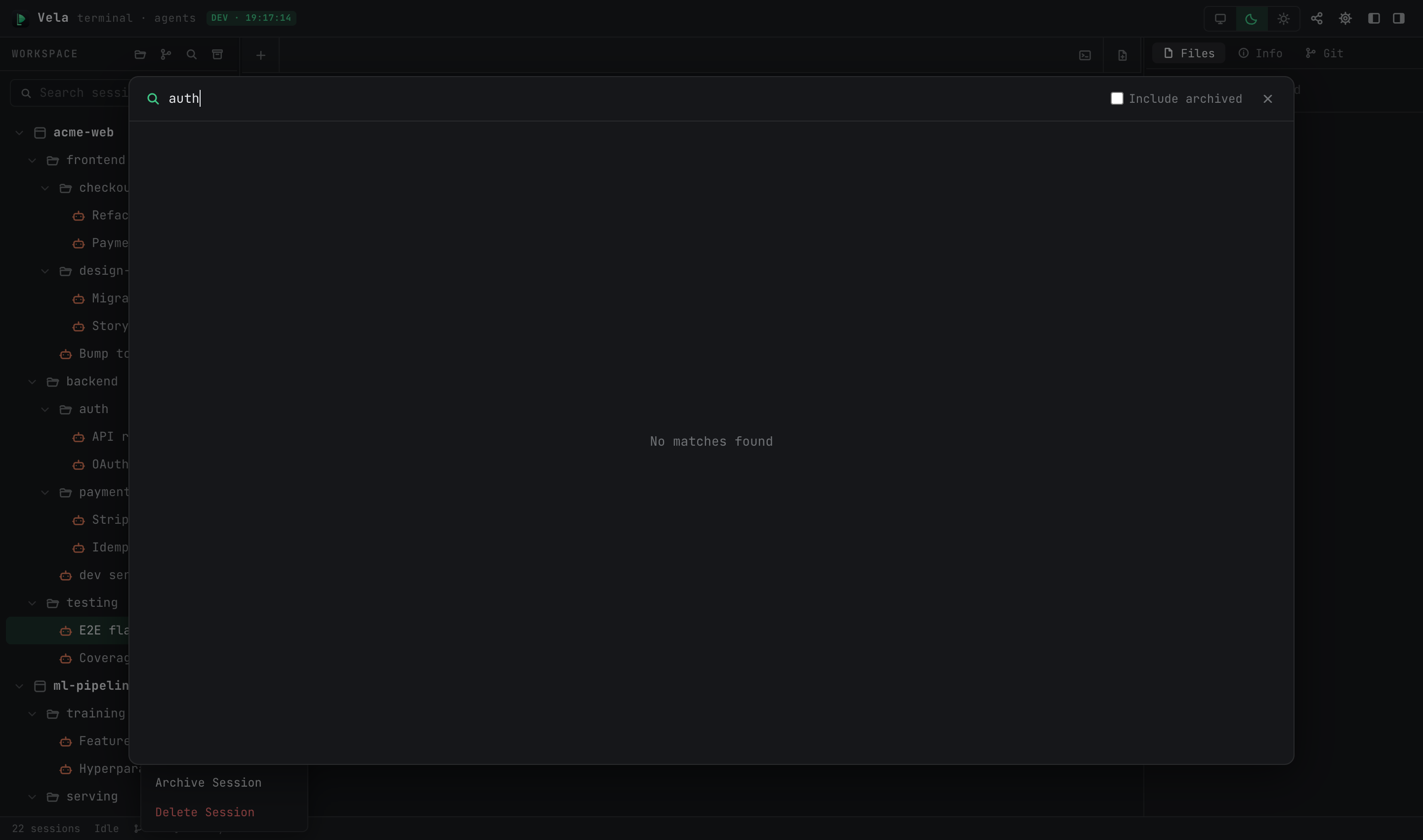
- Multiple keywords (order-independent), CJK substrings, millisecond responses, relevance-ranked.
- Results grouped by session on the left; the preview on the right follows and highlights the current hit; ↑↓ / Enter steps through hits across sessions.
- The "open session" button jumps straight to that session in the workspace.
- By default only live sessions are searched; the "Include archived" toggle widens the scope.
Terminal output is only searchable if session recording is enabled (Settings ▸ Advanced ▸ Record session logs, off by default); agent transcripts are always searchable.
9. The safety net around deletion
Deleting a session is real deletion (its recording file is cleaned up too). But when you delete a group or project that still contains archived sessions, the archives don't die with it — they stay in the archive panel, and restoring one re-creates its containing group. In other words: archive first if you're worried; archived content can always be brought back.